CN >
CN >
For gamers, professional designers, and AI developers who pursue extreme performance, the stable operation of the GPU (Graphics Processing Unit) is critical. However, many users have encountered the difficult problem of GPU temperature skyrocketing. This not only triggers a performance drop (throttling), stuttering, or even system crashes, but also poses a serious long-term threat to hardware longevity.
So, what exactly causes the GPU to "run a fever"? This article will provide a professional, rigorous, and direct-to-the-point deep analysis from three dimensions—hardware, software, and environment—and offer practical solutions to help you completely overcome high-temperature issues.

Core Reason: Failure of the Hardware Cooling Mechanism
The GPU generates a significant amount of heat when running under high load, and its cooling system is the first line of defense in maintaining temperature stability. A decrease in cooling system efficiency or a design flaw is the primary and most direct cause of overheating.
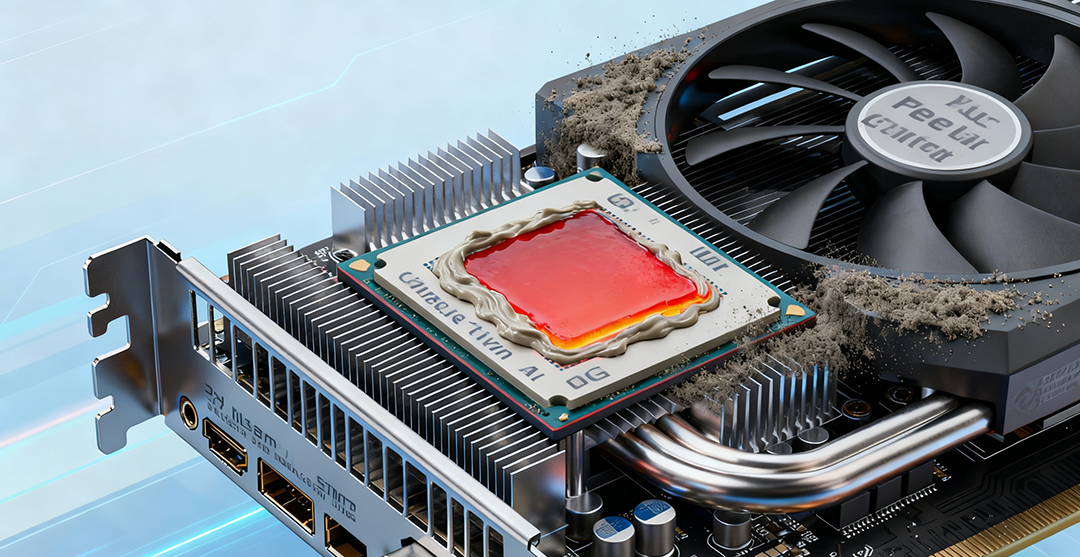
1. Dust Buildup and Clogging on the Cooler (Most Common)
● Symptom: The computer has been used for a long time, and a thick layer of dust, hair, and other debris has accumulated on the graphics card fans and cooling fins.
● Analysis: Dust acts as a "thermal insulator." It severely hinders heat exchange between the cooling fins and the air, preventing heat from being effectively discharged, leading to a sharp drop in cooling efficiency.
● Solution: Regularly and thoroughly clean the GPU cooler (including fan blades and fins) using canned air or a soft brush combined with a vacuum cleaner.
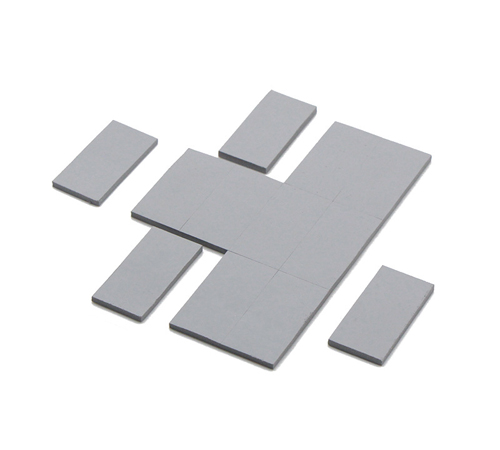
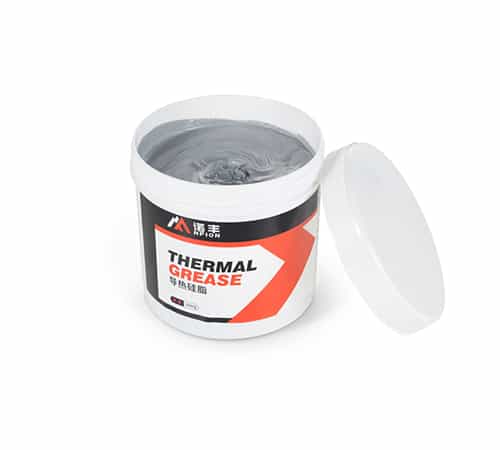
2. Aging and Cracking of Thermal Paste/Pads
● Symptom: The graphics card has been used for over 2-3 years, or it has been exposed to high-temperature environments for extended periods.
● Analysis: Thermal paste/pads are responsible for filling the minute gaps between the GPU core and the heatsink base to achieve efficient heat transfer. Once the thermal paste ages, hardens, or cracks, the thermal resistance increases sharply, acting like a "heat wall" between the core and the cooler, preventing heat from transferring smoothly.
● Solution: Replace with high-quality thermal paste and thermal pads (requires some DIY skill).
3. Fan Malfunction or Insufficient Speed
● Symptom: Graphics card fan stops spinning, has abnormal speed, or makes strange noises.
● Analysis: The fan is the power source for active cooling. A fan malfunction means the cooling airflow is completely lost, and heat will completely accumulate inside the graphics card.
● Solution: Check and repair the fan; if the fan is damaged, contact after-sales service or replace it with the same model fan yourself.
Secondary Reason: System Load and Software Settings Overload
GPU temperature is not only constrained by cooling hardware but also directly depends on its workload—how many computational tasks it needs to process.
1. High-Load Operation and Unreasonable Power/Temperature Limit Settings
● Symptom: Running AAA large-scale games, performing high-resolution rendering, or executing AI/deep learning training tasks.
● Analysis: These tasks force the GPU to operate at full load (100%) for extended periods, reaching peak power consumption and heat generation. If the Power Limit or Temp Limit set by the GPU manufacturer is too aggressive (e.g., limits are loosened in pursuit of extreme performance), the temperature will naturally spike.
● Solution:
● Reasonably set game graphics/rendering parameters.
● Moderately reduce the core voltage (Undervolting) using GPU overclocking software (such as MSI Afterburner)—this is often the most effective method for lowering temperature with minimal performance impact.
● Manually adjust the fan curve, allowing the fan to intervene with higher speeds at lower temperatures.
2. Driver Issues or Software Conflicts
● Symptom: Abnormal temperature increase after a driver update, or unknown background processes occupying GPU resources.
● Analysis: An incorrect driver version can lead to abnormal Clock Speed or Voltage Control for the GPU. Even when idle, the GPU might maintain a relatively high operating frequency and voltage, thus increasing heat generation.
● Solution: Rollback or update to a stable, official graphics driver version; use the Task Manager to check and close unnecessary background GPU-occupying processes.
Environmental Factors: Case and External Air Restrictions
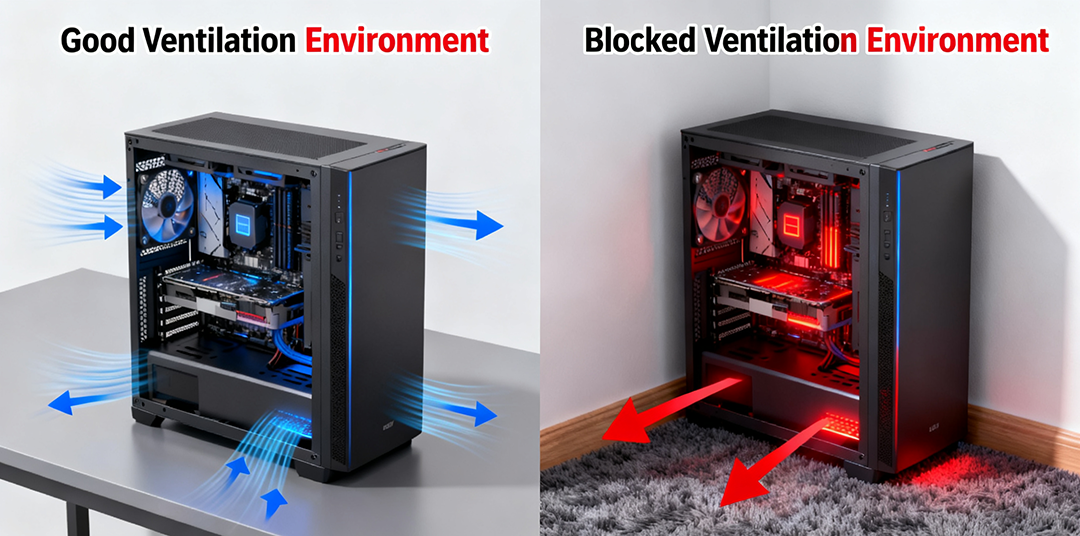
A sealed, poorly ventilated case environment can greatly restrict the effectiveness of the GPU cooler.
1. Unreasonable Airflow Design Inside the Case
● Symptom: Messy cable management inside the case, lack of case fans, or insufficient/improperly positioned intake/exhaust vents.
● Analysis: "Airflow" is the key to ensuring air circulation inside and outside the case to dissipate heat. If hot air inside the case cannot be promptly expelled and cold air cannot be effectively replenished, the heat dissipated by the GPU will repeatedly cycle within the case, leading to "heat accumulation." The ambient temperature (internal case temperature) rises, and the GPU temperature naturally remains high.
● Solution:
● Optimize cable management to ensure it does not obstruct airflow.
● Add/optimize the configuration of case fans (usually recommended front intake, rear/top exhaust, forming positive or balanced airflow).
2. GPU Model and Case Space Mismatch
● Symptom: A long, high-end, three-fan graphics card installed in a compact (Mini-ITX) case.
● Analysis: The GPU is too close to the case side panel or bottom, causing the fans to not "get" enough cold air, thereby affecting cooling performance.
● Solution: Ensure you choose a spacious, well-ventilated case for high-performance graphics cards; use a vertical mounting bracket (if space allows) or switch to a thinner graphics card.
Conclusion and Action Guide
GPU overheating is not caused by a single factor; it is usually the result of a combination of dust aging, high load, and cooling restrictions.
|
Factor Category |
Key Problem |
Corresponding Solution |
Difficulty/Effectiveness |
|
Hardware |
Dust/Thermal paste aging |
Clean dust, replace thermal paste/pads |
Medium/High (Very effective) |
|
Software |
High core voltage/High load |
GPU Undervolting, adjust fan curve |
Hard/High (Addresses the fundamental heat generation) |
|
Environment |
Poor case airflow/Heat accumulation |
Optimize case fan configuration and cable management |
Easy/Medium (Improves basic environment) |
If you are troubled by high GPU temperatures, it is recommended to start with the simplest steps like cleaning the dust and optimizing the fan curve, and then systematically troubleshoot to ensure your "performance beast" can run at full throttle in a cool, stable state!